
How to Get Closed Caption on Netflix: TV, Phone, Computer, Roku, Apple TV, Fire TV & Consoles
If you are looking for how to get closed caption on netflix, here is the direct answer: start any show or movie, open the playback controls, select Audio & Subtitles, and choose a caption language. That one menu is where captions live on almost every device Netflix runs on.
This guide walks through the exact route on each screen — phone and tablet, computer, smart TV, Roku, Apple TV, Fire TV and game consoles — plus how to turn captions off again, how to change how they look, and how to pick the richer SDH track when a title offers it.
It also covers the frustrating cases honestly: captions that never appear, captions that keep disappearing, and titles that simply do not offer the language you want. Where a step depends on your app version, this guide says so instead of pretending every screen looks identical.

How to Get Closed Caption on Netflix at a Glance
| Your Screen | How You Open the Controls | Then Select |
|---|---|---|
| Phone or tablet | Tap the screen while the title plays | Audio & Subtitles, then a caption language |
| Computer (web browser) | Move your mouse over the video | The speech-bubble Audio & Subtitles icon, then a language |
| Smart TV | Press the up or down arrow on the remote | Audio & Subtitles, or the language row along the bottom |
| Roku | Press the up or down arrow on the remote | Audio & Subtitles, then a language |
| Apple TV | Swipe up, or press the up arrow, on the remote | Audio & Subtitles, then a language |
| Fire TV | Press the up or down arrow on the remote | Audio & Subtitles, then a language |
| PlayStation or Xbox | Open the playback controls with the controller | Audio & Subtitles, then a language |
| Turning captions off | Same controls, same menu | Off (shown as None on some older TVs) |
How to Turn On Closed Captions on Netflix
The quickest method is to open the subtitle menu during playback. You do not usually need to change your account settings first — the choice sits inside the player itself, on every platform.
- Start playing the show or movie you want to watch.
- Open the playback controls on your device (tap, click, or press an arrow on the remote — the per-device sections below give the exact move for your screen).
- Select Audio & Subtitles. On most screens it appears as a speech-bubble or dialogue icon; on some TVs the language options appear along the bottom of the screen without the icon.
- Choose an available subtitle or caption language. If you see Other, selecting it shows every language the title offers.
- Resume playback and check that the text appears.
Netflix uses the same general process across many devices, although the way you open the controls varies. One honest caveat: the menu shows only the tracks that exist for that title, so if your language is not listed, no setting elsewhere can add it.
How to Turn Closed Captions Off on Netflix
The competitor guides rarely answer the reverse question, yet half the people searching this topic want the text gone. Turning captions off uses the exact same menu you used to turn them on.
- Start playing any title and open the playback controls.
- Select Audio & Subtitles.
- Under the subtitles list, choose Off. On some older TVs the same choice is labelled None.
- Return to playback — the text disappears immediately.
Three cases where text may stay or come back, all worth knowing before you blame the app: dialogue spoken in a different language from the title’s main audio can keep its own subtitles even with captions off; a small number of titles produced for another region show local-language subtitles that cannot be switched off; and Netflix notes that audio and subtitle choices on most Kids titles watched from an adult profile are not saved for next time, while a Kids profile does save them.
How to Get Closed Caption on Netflix on a Phone or Tablet
Netflix provides subtitle controls in its mobile app. These steps apply to many Android phones, iPhones, and tablets.
- Open the Netflix app.
- Start playing a show or movie.
- Tap the screen to display the playback controls.
- Tap Audio & Subtitles.
- Select your preferred caption language.
- Tap outside the menu to return to the video.
If you cannot find the option, make sure the video is playing and that you have tapped the screen — the controls fade away a few seconds after playback continues, so a fresh tap brings them back. On most current versions of the app, the menu also shows an Apply step on some devices; if you see it, tap it to confirm your choice.
Captions are not only a long-form streaming feature, either: the short social videos covered in our goonette captions collection live or die by the text written under them — on Netflix, the same principle applies inside the player, where the caption track is the text layer that carries dialogue to anyone watching with the sound down or off.
How to Change Caption Appearance on Android
Android users can adjust the appearance of Netflix subtitles through the profile settings in the app.
- Open Netflix and tap My Netflix.
- Tap the profile name at the top.
- Select Manage Profiles.
- Choose the profile you want to edit.
- Tap Subtitle Appearance.
- Adjust the available appearance settings.
Netflix says these mobile appearance changes apply to titles played on the Android mobile device — they do not restyle captions on your TV or computer. On iPhone and iPad, Netflix directs viewers to the device’s own caption settings instead (in iOS Settings, under Accessibility, look for the subtitles and captioning options), so follow that route if the in-app path above is not offered on your Apple device.
How to Get Closed Caption on Netflix on a Computer
You can turn on captions while watching Netflix in a supported web browser.
- Open Netflix in your browser.
- Start playing a show or movie.
- Move your mouse over the video to show the controls.
- Select Audio & Subtitles — the speech-bubble icon in the playback bar.
- Choose the language you want. Tracks marked (CC) are the closed-caption tracks, with sound descriptions where the title provides them.
- Click the video to continue watching.
If you are watching on a Chromebook, Windows computer, or Mac, the subtitle menu is part of the Netflix playback controls — there is nothing to install and no extension involved. Trackpad users get the same result by moving the pointer over the picture; the controls hide again once the pointer sits still.
How to Change Subtitle Appearance on a Computer
Netflix also lets you change the look of captions through your profile settings, and the web route carries the broadest set of appearance controls.
- Open your Netflix account in a web browser.
- Go to Profiles and select your profile.
- Choose Subtitle appearance.
- Adjust the available font, size, shadow, or background settings.
- Select Save.
- Open Netflix again to watch with the updated appearance.
These settings belong to the profile you edited, not to a single title — which is why each person on a shared account can keep a different caption size. Some appearance options may vary by country, language, or device, and a TV that does not refresh the change right away usually picks it up after the Netflix app is reloaded or relaunched.
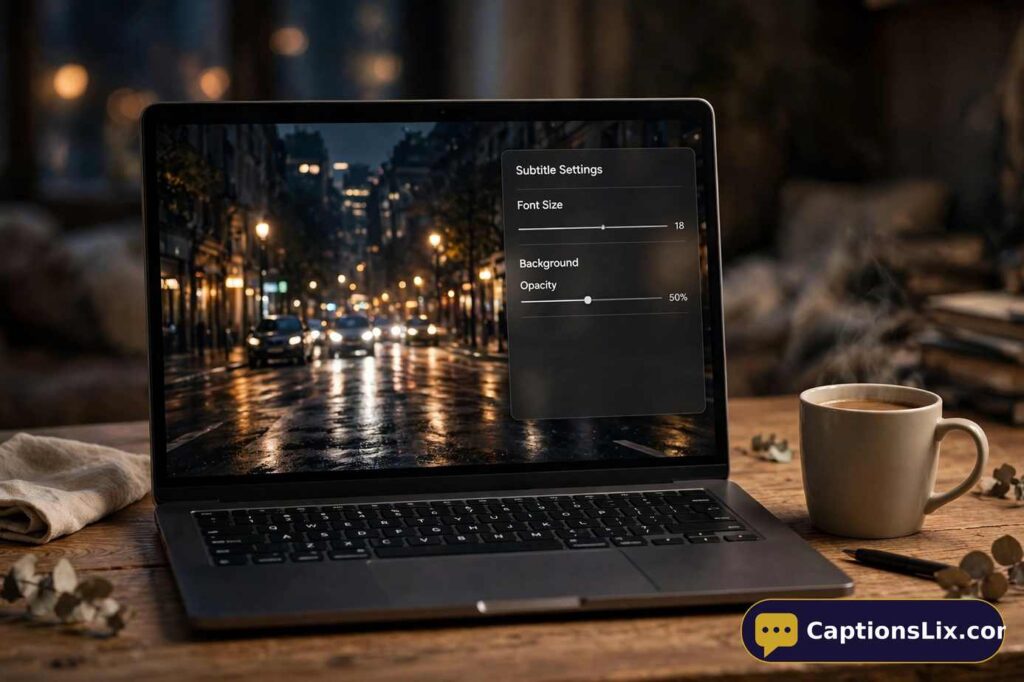
How to Turn On Captions on a Smart TV
Smart TVs use a remote control to open the subtitle menu. The exact button depends on the television and Netflix app version, but on most current versions the route below works.
- Open Netflix on your smart TV.
- Start playing a show or movie.
- Press the up or down arrow on your remote.
- Select Audio & Subtitles if it appears.
- Choose the available caption language.
- Return to playback.
On some TVs, the language options appear at the bottom of the screen without the Audio & Subtitles icon — that bottom row is the same menu, just presented differently. If neither appears, pause the title first and then press the arrow; a paused player holds its controls on screen instead of fading them.
How to Change Caption Appearance on a Smart TV
Some supported TV devices offer subtitle appearance settings directly in the playback menu.
- Start playing a title on Netflix.
- Pause the video.
- Open the player controls.
- Select Settings (the gear icon) if available.
- Choose the available size or style options.
- Resume playback.
Not every TV supports the same appearance controls. Older or unsupported devices may use the default caption style — in that case, set the appearance through your profile in a web browser instead (see the computer section above), which is the route Netflix documents for profile-level styling.
How to Get Closed Caption on Netflix on Roku
Roku devices use the Netflix playback menu to select subtitles and captions.
- Open Netflix on your Roku device.
- Play the show or movie.
- Press the up or down arrow on your remote to open playback controls.
- Select Audio & Subtitles.
- Choose the available language.
- Return to the video.
Roku TV supports Netflix subtitle and alternate-audio features on supported devices, but available options can vary by title. One Roku-specific note: the caption settings inside the Roku system menus style many apps, but Netflix follows its own player and profile settings — if your Netflix text ignores the Roku menu, change it inside Netflix instead of hunting through the device settings.
How to Get Closed Caption on Netflix on Apple TV
Apple TV users can open Netflix’s subtitle menu while a title is playing.
- Open the Netflix app on Apple TV.
- Start playing a show or movie.
- Swipe up, or press the up arrow, on the Apple TV remote.
- Select Audio & Subtitles.
- Choose the available caption language.
- Resume playback.
Netflix lists Apple TV as a supported device and provides subtitle controls through the playback menu. For caption appearance on Apple TV, Netflix points viewers to Apple’s own caption settings on the device rather than a Netflix-specific style menu, so adjust the look there if the in-player options are limited.
How to Get Closed Caption on Netflix on Fire TV
Fire TV users can access captions through the Netflix playback controls.
- Open Netflix on your Fire TV.
- Start playing a title.
- Press the up or down arrow on the remote to open the playback controls.
- Select Audio & Subtitles.
- Choose your preferred caption language.
- Return to the video.
If the menu looks different, look for the subtitle or speech-bubble icon. Netflix notes that the available languages depend on the title and device — so a language missing here is missing from the title itself, not hidden by your Fire TV.
How to Get Closed Caption on Netflix on a Gaming Console
Netflix is available on supported PlayStation and Xbox consoles. Captions are selected through the playback controls.
- Open Netflix on your console.
- Start playing a show or movie.
- Open the playback controls with your controller.
- Select Audio & Subtitles.
- Choose an available language.
- Resume watching.
The exact controller button depends on the console and app interface — on most current versions, pressing down on the directional pad or left stick during playback brings the controls up. Consoles also carry their own system-level caption settings, but the Netflix choice is made inside the app’s player, so start there.
How to Choose SDH Closed Captions on Netflix
Some viewers want more than spoken dialogue. SDH captions can include descriptions of sounds and other audio information.
- Start playing a title on Netflix.
- Open Audio & Subtitles.
- Look for a language marked SDH when available.
- Select the SDH option.
- Resume playback.
Netflix explains that closed captions can include dialogue and descriptions of sounds, while subtitles may focus mainly on spoken words. In the web player, closed-caption tracks are also commonly labelled with (CC) after the language — either label marks the fuller track.
What Does SDH Mean?
SDH stands for Subtitles for the Deaf and Hard of Hearing. These captions may describe sounds such as music, laughter, or important audio cues.
- Dialogue appears as readable text.
- Important sounds may be described, in brackets or parentheses, such as [door slams] or [tense music].
- Music or other audio details may be included.
- The option may appear as an SDH badge or language label.
SDH availability depends on the title. Some shows may not offer SDH for every season or episode, so check the menu per episode rather than assuming the whole series matches.
Closed Captions on Netflix Downloads: Watching Offline
A downloaded episode is not a caption-free zone. On most current versions of the Netflix mobile app, a download keeps the subtitle and caption tracks the title offers, and you switch them exactly the way you do while streaming.
- Open your downloads in the Netflix app and start the downloaded title.
- Tap the screen to open the playback controls.
- Tap Audio & Subtitles and choose your caption language — or Off.
Two honest limits: the language list for a download can be shorter than the full streaming list for the same title, and if the captions you need are missing from a download, deleting it and downloading again while connected usually refreshes the track list the app offers. Appearance changes still follow the profile and device rules described above — downloads do not carry a separate caption style of their own.
Why Closed Captions May Not Be Available
Netflix does not offer every subtitle or caption language on every title. Availability can depend on the show, movie, device, and other factors.
- The title may not have the language you want.
- SDH captions may not be available.
- A particular episode may have different options.
- Your device may not support every appearance feature.
- Older devices may display captions differently.
Netflix says available languages are shown in the playback menu. For some titles, the subtitle options may also vary by season or episode — episode 1 offering your language does not guarantee episode 7 does. Your region matters too: the same title can carry different caption languages in different countries, because the tracks are licensed and produced per market.
What to Do If Netflix Captions Are Not Showing
If you selected captions but cannot see them, try a few basic checks before changing advanced settings.
- Pause the video and open Audio & Subtitles again.
- Confirm that the correct caption language is selected — not Off.
- Try another show or movie. If captions appear there, the first title’s track is the problem, not your device.
- Close and reopen the Netflix app.
- Restart your device.
- Check whether Netflix is working normally on your connection.
Netflix recommends device-specific troubleshooting when selected subtitles do not appear or display only intermittently. One more check that belongs on this list: look at your profile’s subtitle appearance. If the font size was set very small, or the text colour matches the scene, captions can be technically on and practically invisible — the readability section below fixes that.
How to Fix Netflix Captions That Keep Disappearing
Captions that appear and disappear may be caused by a device or playback issue.
- Restart the Netflix app.
- Restart your TV, phone, or streaming device.
- Check whether the problem affects one title or several.
- Try another supported device if possible.
- Check your network connection.
- Update the Netflix app when an update is available.
Netflix’s troubleshooting guidance includes checking the network and restoring connection settings when needed. If captions vanish at the same moment in one episode every time, that points at the title’s own track rather than your setup — note the title and timestamp, because that is the detail Netflix support will ask for.
Captions Out of Sync, in the Wrong Language, or Too Fast to Read
Three complaints sit next to “not showing” and “disappearing,” and each has its own first move.
- Out of sync: pause, rewind about ten seconds, and play again — a small desync often clears. If it persists through the episode, switch the caption track off and back on, then test another title to see whether the delay follows the title or the device.
- Wrong language: open Audio & Subtitles and check both lists. Players sometimes remember the audio language and pair it with a subtitle track you did not choose; reselecting your language — or Other, to see the full list — sets it right.
- Too fast to read: the caption speed is set by the title’s track and cannot be slowed directly, but a larger font size and a solid background (next section) make fast text markedly easier to follow. Pausing and rewinding remains the honest fallback for dense scenes.
How to Make Netflix Captions Easier to Read
Small text or low contrast can make captions difficult to follow. Netflix offers appearance controls on supported devices.
- Increase the caption font size when available.
- Choose a clearer text style — a plain, bold font reads faster than a decorative one.
- Adjust the background or shadow settings; a solid or semi-solid background behind the text is the single biggest readability win on bright scenes.
- Try a different appearance if the text blends into the video.
- Check the settings again if you switch devices — Android app changes apply only to that device, while profile changes made in a browser carry furthest.
Netflix supports changes to font, size, shadow, and background color, although available options vary by device and language.
How to Find Titles With Your Preferred Caption Language
If you want to watch in a specific language, Netflix lets you browse titles using available audio and subtitle languages.
- Open Netflix and search for a language-related category.
- Check the title details before playing.
- Start the title and open Audio & Subtitles.
- Select the language shown for that title.
- Remember that not every title offers every language.
Netflix says you can search for titles with specific audio languages, while subtitle availability is shown for each title during playback. The practical shortcut: on a computer, Netflix’s browse-by-subtitle-language pages let you filter the catalogue by the subtitle language itself, which is faster than opening titles one by one when language matters more than the specific show.
Closed Captions vs. Subtitles on Netflix
The two terms are related, but they are not always identical.
- Subtitles usually display spoken dialogue — including dialogue translated from another language.
- Closed captions can include dialogue and important sound descriptions.
- SDH captions are designed to provide additional audio information, and on Netflix they serve as the fullest caption track for many titles.
- The exact label depends on the language and title: look for (CC) or SDH after the language name in the menu.
For viewers who need sound descriptions, SDH is often the more useful option when it is available. For viewers learning a language or watching foreign-language drama, plain subtitles in that language are usually the better study tool — the choice is in the same menu either way.
Can You Turn Captions On for Every Netflix Title?
You can select captions for titles that offer them, but Netflix does not provide every language or caption type for every show and movie.
- Check the available languages in the playback menu.
- Look for an SDH option if you need sound descriptions.
- Try another title if your preferred language is missing.
- Check the title details before starting a long movie.
- Remember that some episodes may have different caption options.
Netflix states that subtitle and audio availability varies by title, and some SDH options may not be available for all episodes. So the accurate answer to this section’s question is: captions themselves are a standard feature across the catalogue on supported devices, but your specific language or the SDH version of it is never guaranteed until the menu shows it.
Why Closed Captions Matter Beyond the Volume Button
Captions started as an accessibility feature, and that remains their most important job: they carry dialogue, speaker changes and meaningful sound to Deaf and hard-of-hearing viewers who would otherwise lose half the story. But the same track quietly serves almost everyone else at some point — a sleeping household, a loud café, a train with forgotten earbuds, dialogue buried under a film score, a language learner matching sound to text.
That is also why choosing the right track matters. A viewer who needs sound descriptions should reach for SDH or the (CC) track when it exists, not the dialogue-only subtitle — and a service that labels its tracks clearly, as Netflix’s menu does, makes that choice a two-second decision instead of a research project. Setting captions up once, properly, on the devices you actually use, is the whole point of the steps above.
Frequently Asked Questions About How to Get Closed Caption on Netflix
How do I get closed caption on Netflix?
Start playing a title, open the playback controls, select Audio & Subtitles, and choose an available caption language.
Why can’t I find the closed caption button on Netflix?
The button may appear as Audio & Subtitles, a speech-bubble icon, or a language menu. On TVs, you may need to press an arrow on the remote first.
How do I turn on captions on Netflix on my phone?
Play a title, tap the screen, select Audio & Subtitles, and choose the language you want.
How do I turn on captions on Netflix on my TV?
Start a title, press the up or down arrow on your remote, open Audio & Subtitles, and select an available language.
What is the difference between subtitles and closed captions?
Subtitles usually show dialogue. Closed captions can also describe sounds and other important audio information.
What does SDH mean on Netflix?
SDH means Subtitles for the Deaf and Hard of Hearing. These captions may include dialogue and descriptions of sounds.
Can I change the font size of Netflix captions?
Yes, Netflix supports caption appearance changes on supported devices. Available settings may include font, size, shadow, and background color.
Why do Netflix captions keep disappearing?
The issue may be related to the title, app, device, or network. Try reopening the subtitle menu, restarting Netflix, and checking your connection.
Why does Netflix not offer captions in my language?
Netflix does not provide every subtitle or caption language for every title. Check the available languages in the playback menu.
Do Netflix captions work on every device?
Netflix supports captions on many phones, tablets, computers, TVs, streaming devices, and consoles. However, features and appearance controls vary by device.
Conclusion
Learning how to get closed caption on Netflix is usually a matter of opening the playback controls and selecting the right language. On phones and computers, tap or click the screen. On many TVs and streaming devices, use the remote to open the subtitle menu — and the same menu, with Off, is how you turn the text back off.
If you need more than spoken dialogue, look for an SDH option. You can also adjust caption appearance on supported devices to make text easier to read. However, not every title offers every language or caption type, and this guide has flagged those limits wherever they apply instead of promising tracks that may not exist.
When captions do not appear, check the selected language, try another title, and restart the app or device. Behind every one of these small settings sits the bigger idea of video accessibility — text that makes a story available to everyone in the room — and two minutes spent setting it up properly pays off every single time you press play.